 CoAPP
CoAPPCoAPP Desktop / For Mac
Copilot, Codex
and your files.
Ask Copilot a question, work through a project in Codex, or turn the result into a presentation. CoAPP keeps the conversation, tools and files in one place.
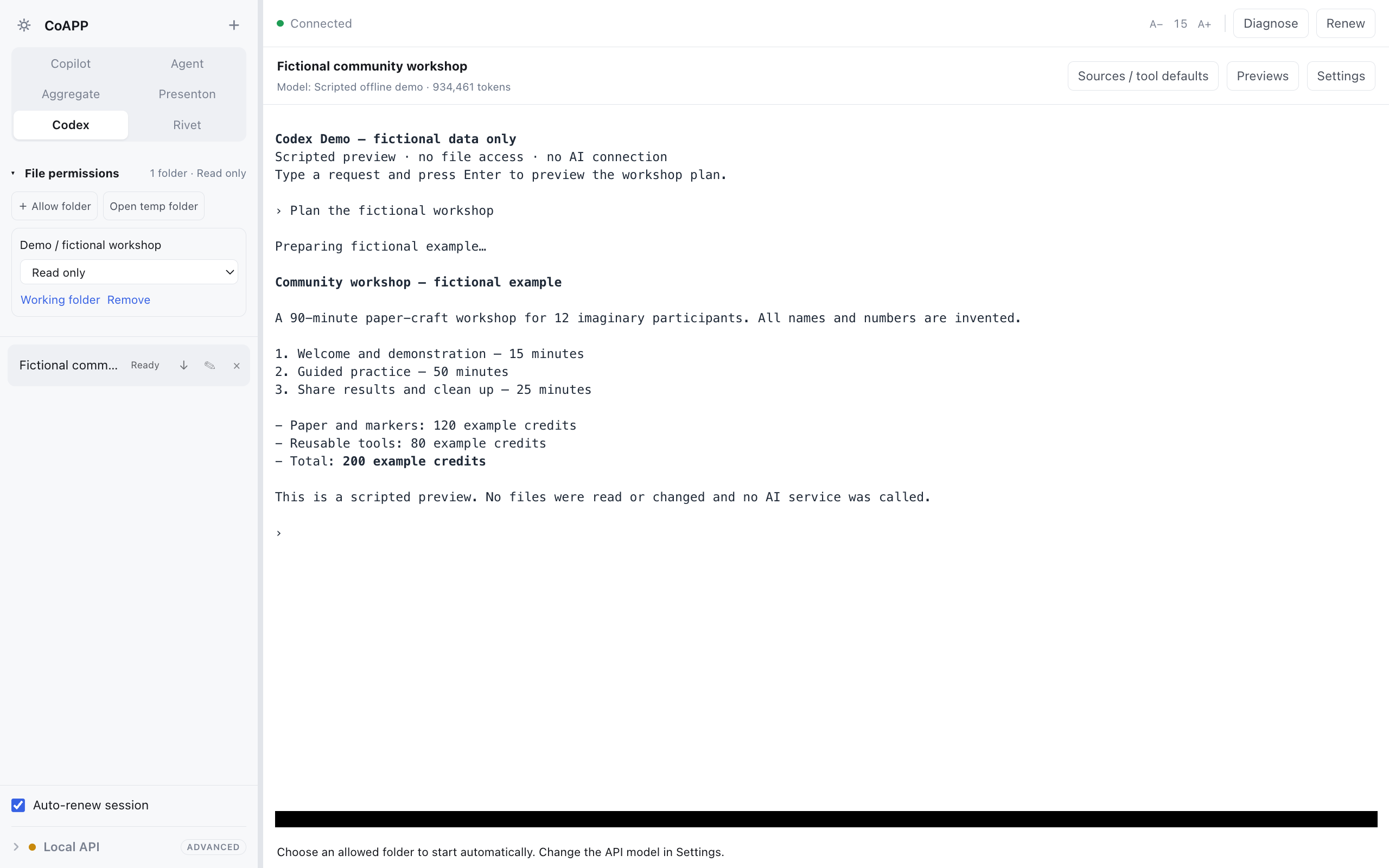
Screenshots show CoAPP 3.7.9. The App Store listing shows the version currently available.
Copilot and agents
Keep the research
in one place.
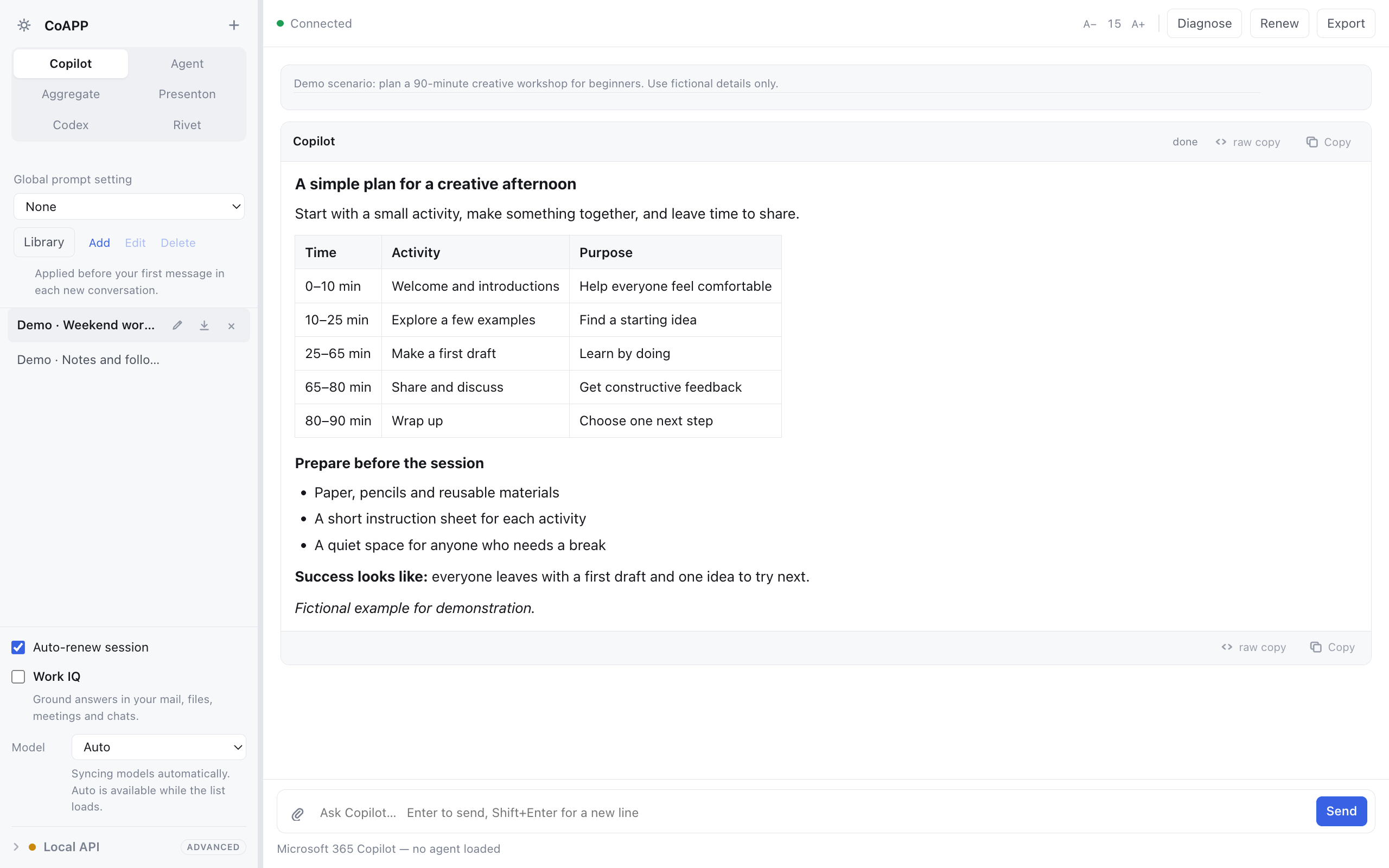
Use Copilot for everyday questions, open a conversation with one of your Microsoft agents, or compare several agents in Aggregate. Each keeps its own thread. You can queue follow-ups, attach documents and export the conversation as Markdown.
Copilot: a place for the follow-up
Ask a question, attach a document and keep working in the same conversation. Review the answer’s sources, queue the next question or copy the original Markdown into your notes.
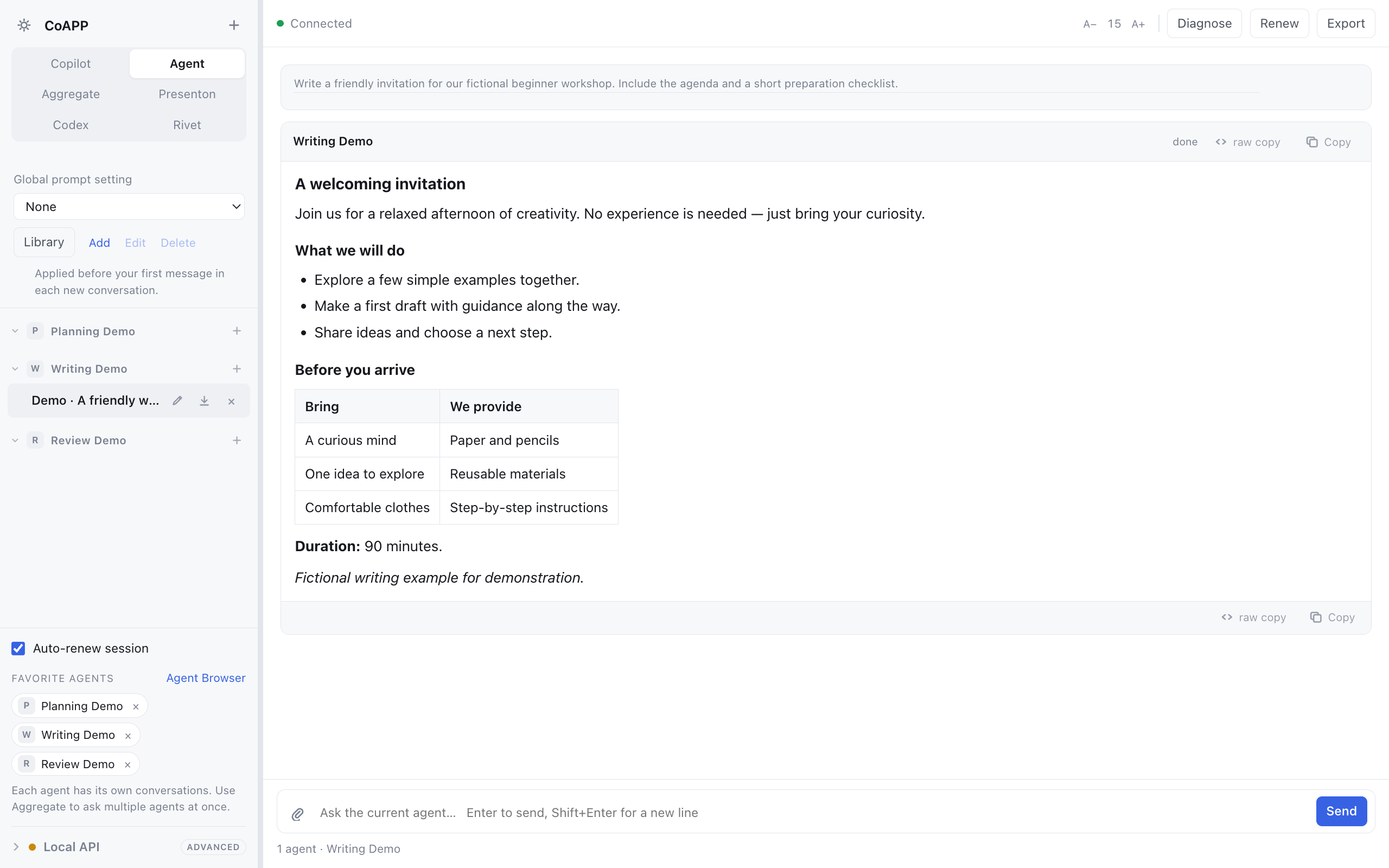
Agent: talk to a specialist
Choose a Microsoft agent you have access to and give it a dedicated conversation. Keep the agent’s replies and follow-up questions together, with the files and instructions that belong to that work.
Codex: work on the files you choose
Ask Codex to read a project, explain code, make an edit or run a check. The terminal shows commands and their results. Give each session read-only or read-and-write access to selected folders, and return to its saved history later.
Import Skills for repeatable tasks and MCP servers for additional tools. Use the built-in source search and browser tools when the work needs web evidence.
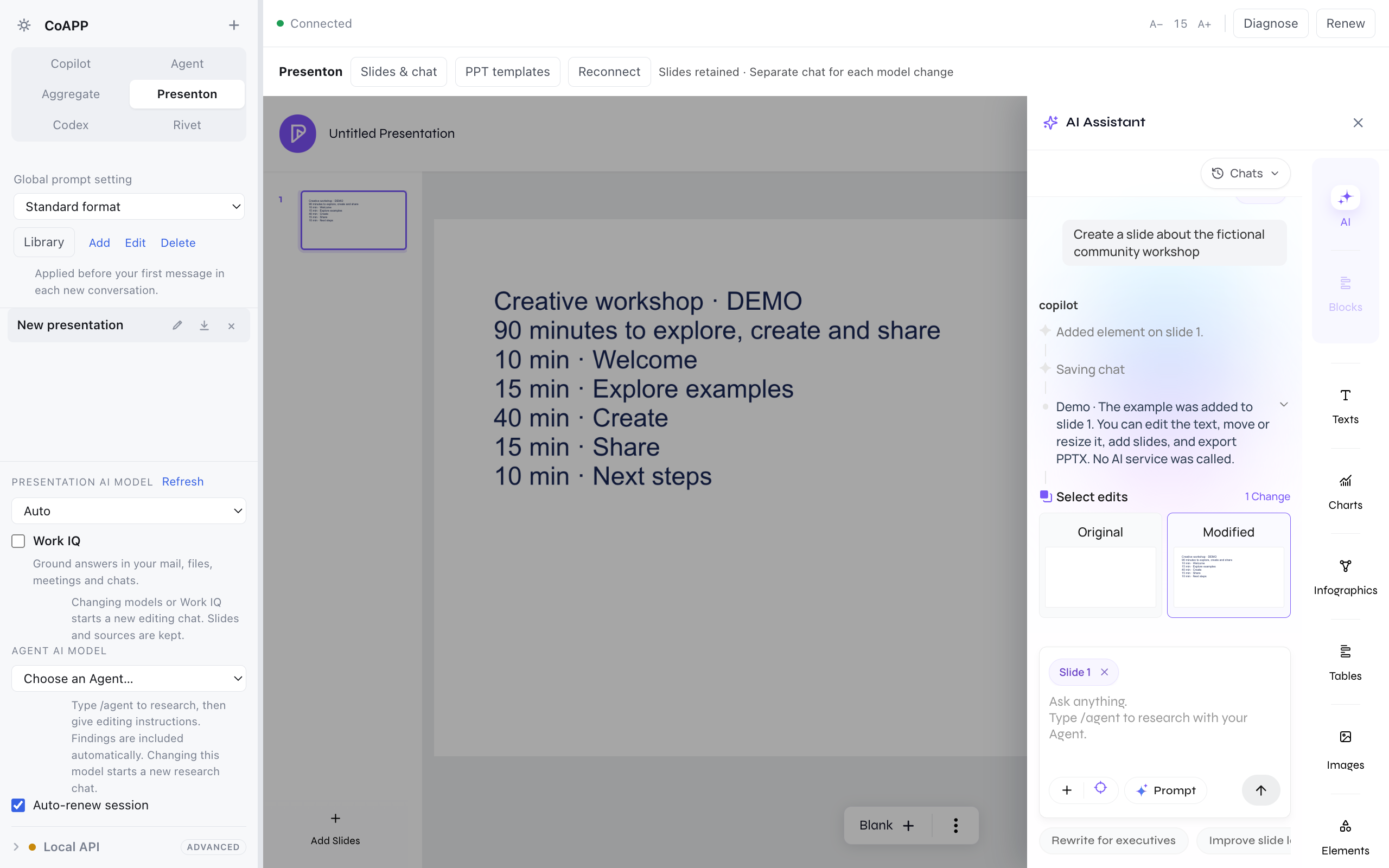
Presenton: build and revise a slide deck
Create slides, edit the layout on the canvas and ask for changes beside the presentation. Keep research with the deck, then export it as PowerPoint or PDF for a meeting or further editing.
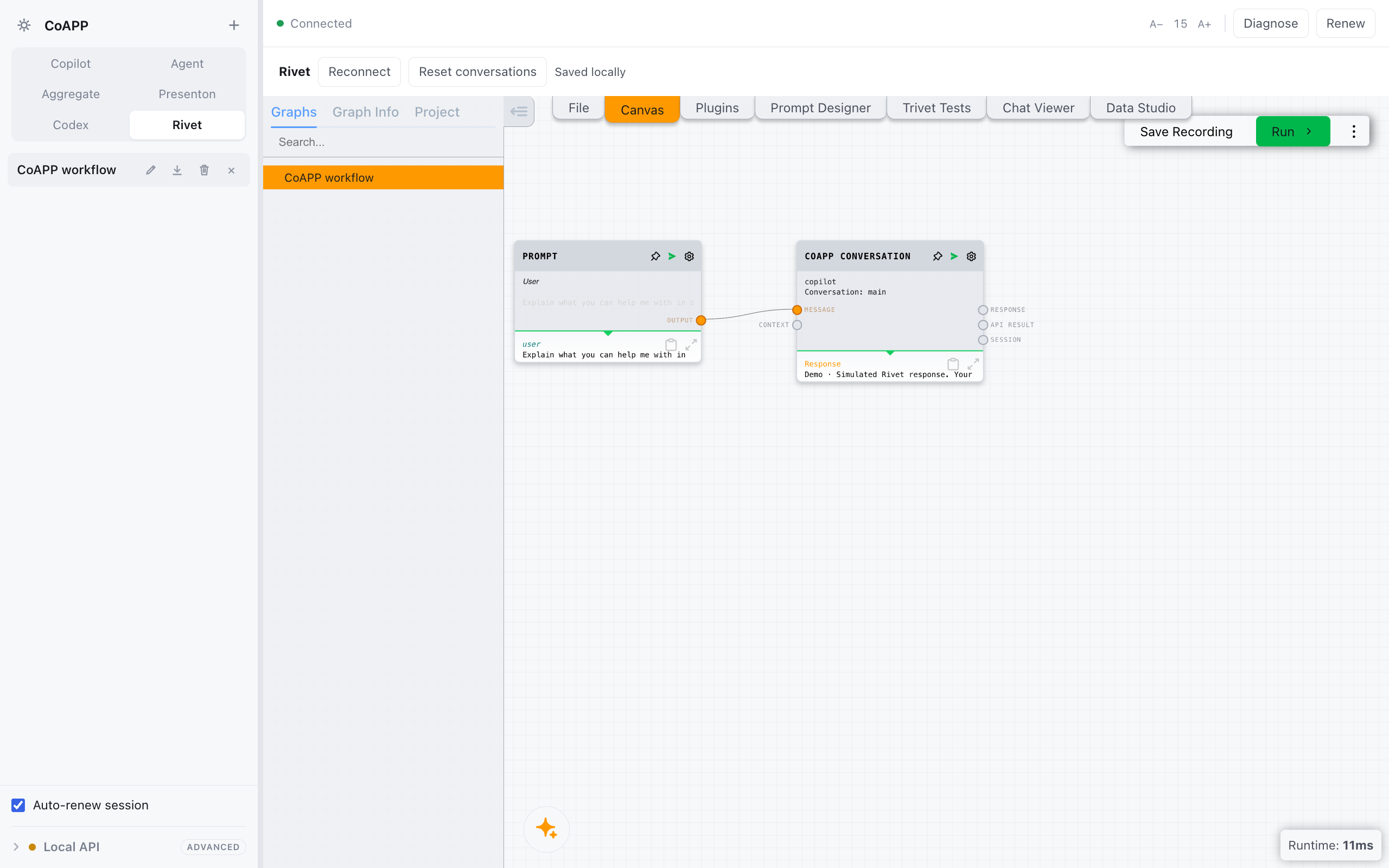
Rivet: make a process you can run again
Connect prompts, model calls and processing steps in a visual graph. Inspect each step’s output, adjust the prompt and run it again. Projects stay with their CoAPP workspace.
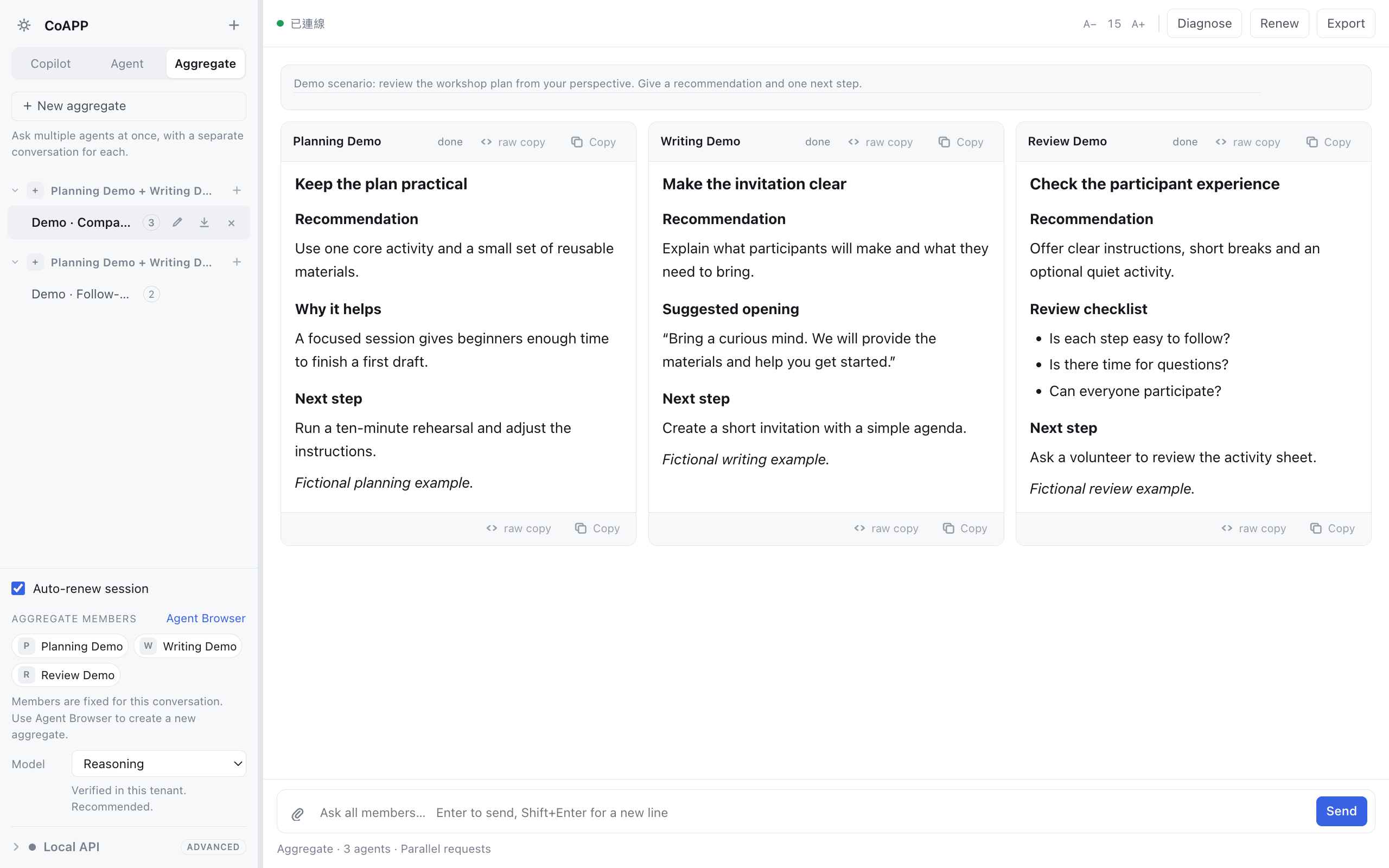
Aggregate: compare your agents’ answers
Send the same question to several agents you already have access to. Read their answers side by side. A follow-up waits until all selected agents finish, so the next question uses the completed responses.
- Documents and previews
- Create and preview supported PDFs, Word documents, spreadsheets, images and HTML. Save the original output or export it in a supported format.
- A copy you can keep
- Export a conversation as Markdown for your notes, an editor or a project folder.
- Your preferred view
- Switch between light and dark appearance and adjust the text size for your screen.
The Mac App Store edition
Built for the
Mac App Store.
CoAPP follows the Mac App Store’s sandboxed distribution model. The app and its bundled helper use Apple’s App Sandbox. Codex runs its commands and document tools in a separate macOS virtual machine built with Apple’s public Virtualization framework.
- You choose the folders
- Use the macOS folder picker to grant access. Each Codex session has its own read-only or read-and-write permissions; the rest of your home folder is not automatically shared with the execution environment.
- Your Microsoft sign-in stays in the host app
- The guest requests model responses through CoAPP. It does not receive your Microsoft session credentials. Prompts and file content supplied to the model are still processed by the Microsoft services you use.
- The tools come with the App Store package
- There is no separate host companion to install. On first Codex setup, CoAPP downloads macOS directly from Apple and prepares the execution environment. After setup, it starts in the background.
- Apple’s standard distribution path
- The MAS edition is signed for the Mac App Store and delivered through Apple. It uses public Apple APIs and keeps the host sandbox enabled. New versions are submitted to App Review before release.
About Apple’s technology: App Sandbox · Virtualization framework
Requirements
Before you begin.
Mac App Store edition: Apple silicon and macOS 27 or later.
Intel Macs are not supported by this edition.
You’ll need an internet connection and a Microsoft account with access to Microsoft 365 Copilot. Sign in to Microsoft inside CoAPP.
Available agents, files and work information depend on your Microsoft license and your organization’s policies.
First Codex setup requires at least 70 GB of free disk space and 6 GB of available memory. The macOS download is approximately 27 GB. Other CoAPP features remain available during setup.
Is Microsoft 365 included?
No. CoAPP does not include a Microsoft subscription or provide access to content outside your existing permissions.
Where are my questions and files processed?
Prompts and attachments are sent to the Microsoft services you sign in to. CoAPP also saves conversation history and preferences on your Mac. The privacy policy explains this in detail.
Can I try CoAPP before signing in?
Demo Mode uses fictional conversations and scripted responses. You can explore the interface without connecting a Microsoft account.
Can other tools connect to CoAPP?
An optional Local API lets compatible tools on your Mac use CoAPP through a pairing token. It is off by default. Only enable it for tools you trust; their requests use your signed-in Microsoft access.
Are the agents in the screenshots included?
The screenshots use fictional agent names, conversations and documents. Your available agents come from your Microsoft account and organization.
A question about CoAPP?
For setup, availability or help with the app, write to TSUGAS.