Make a calibration page
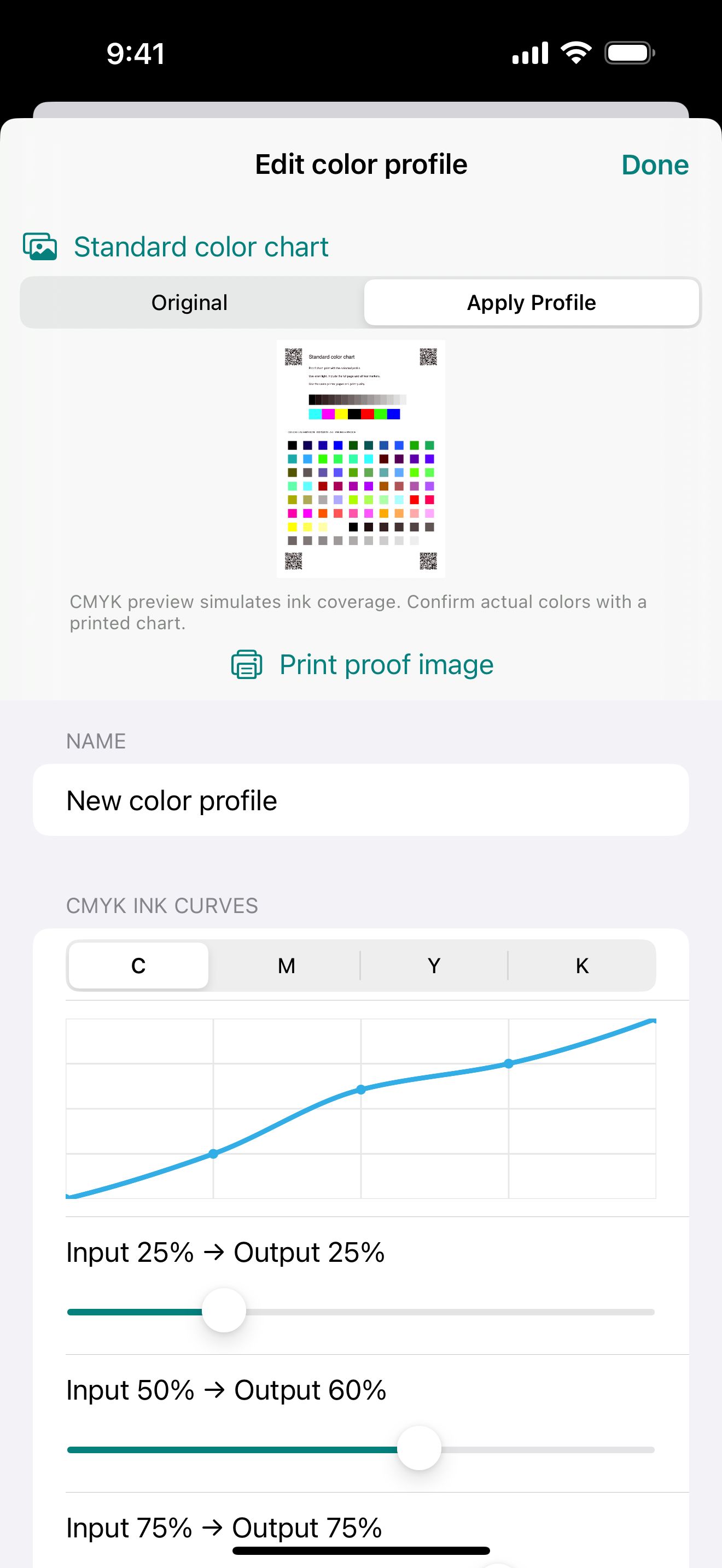
Choose a photo. The app places it on a page with 80 known color patches and four corner markers.
 Wi-Fi Print & Scan
iPhone · iPad · iOS 17 or later
Print a calibration page, then photograph it with your phone. The app compares the color patches and builds a correction for your printer and paper. Save it for your next photo print.
App Store release in preparation.
Photograph → Compare → Correct
Automatic color correction from a photo
A yellow cast, dark shadows, colors that come out too strong. A photograph of your test print gives the app a reference to work from.
Choose a photo. The app places it on a page with 80 known color patches and four corner markers.
Select your printer, paper and quality. The calibration page prints without a color profile applied, so it records the starting point.
Use even lighting and include all four corners. The app aligns the page, compares the patches and calculates a correction. If the capture is unsuitable, it asks you to retake it.
Preview the correction, save the profile and make another test print. Reuse it when you print photos with the same printer, paper and quality settings.
Photo analysis happens on your device. Profiles currently apply to photos. Recalibrate when you change paper, ink or print quality.
Automatic correction, with room to adjust
Correction varies across colors and tones instead of making the whole image more intense. You can reduce its strength, compare the preview with the original and keep adjusting until you are ready to print.
Adjust exposure, color balance and saturation, or edit RGB and CMYK curves. Smooth curves let you treat highlights and shadows differently. Correction is moderated near the limits to help preserve gradients and avoid pushing colors into full saturation.
Save separate settings for the printer and paper combinations you use most. Check the preview, then confirm the result on paper.
Camera calibration depends on lighting and the camera. The CMYK preview simulates changes in ink levels. Neither replaces a measuring instrument or an ICC profiling workflow; the printed page is the final reference.
Photos, PDFs and scans
Print from Photos or Files, receive a scan from a compatible network scanner, or capture a document with a supported device's camera. Scanning, previews and document editing do not use your trial pages.
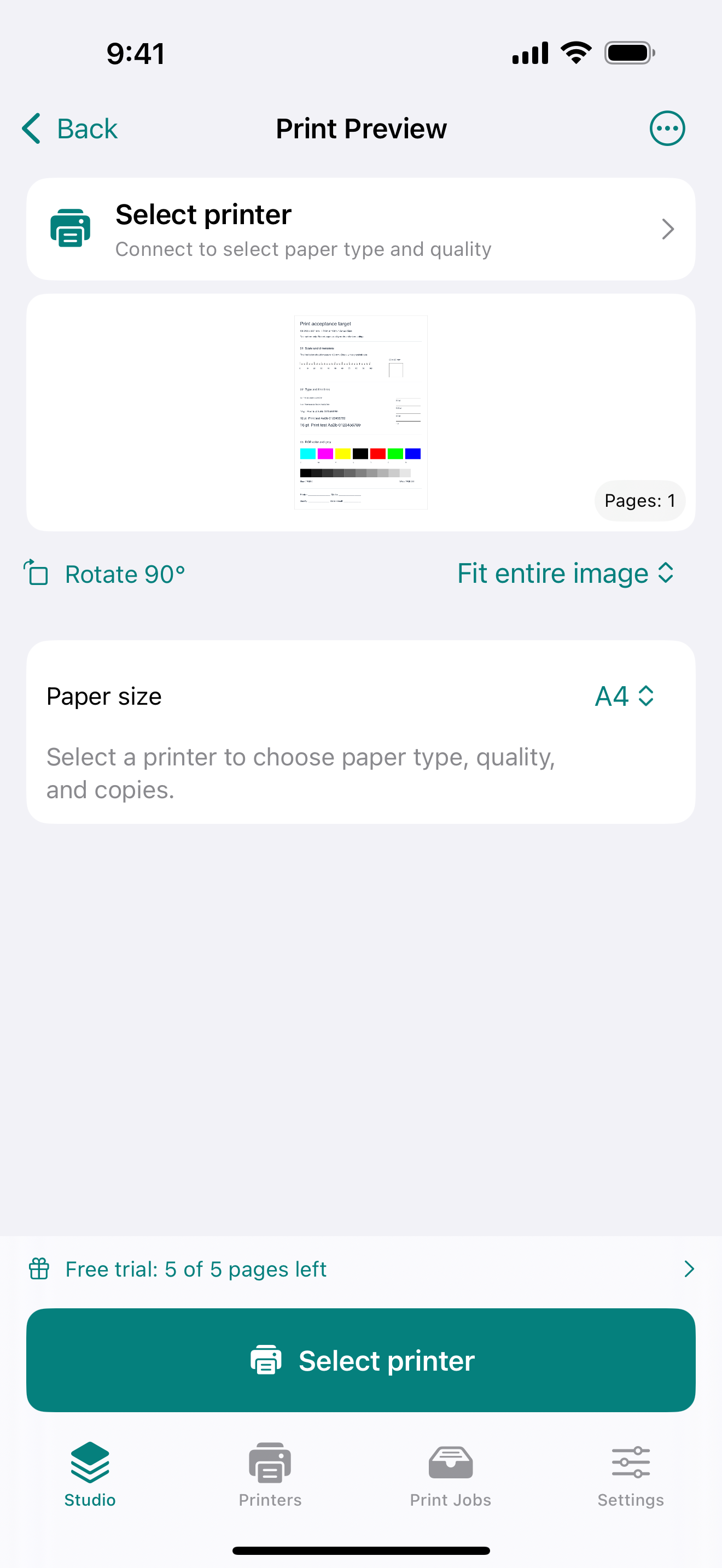
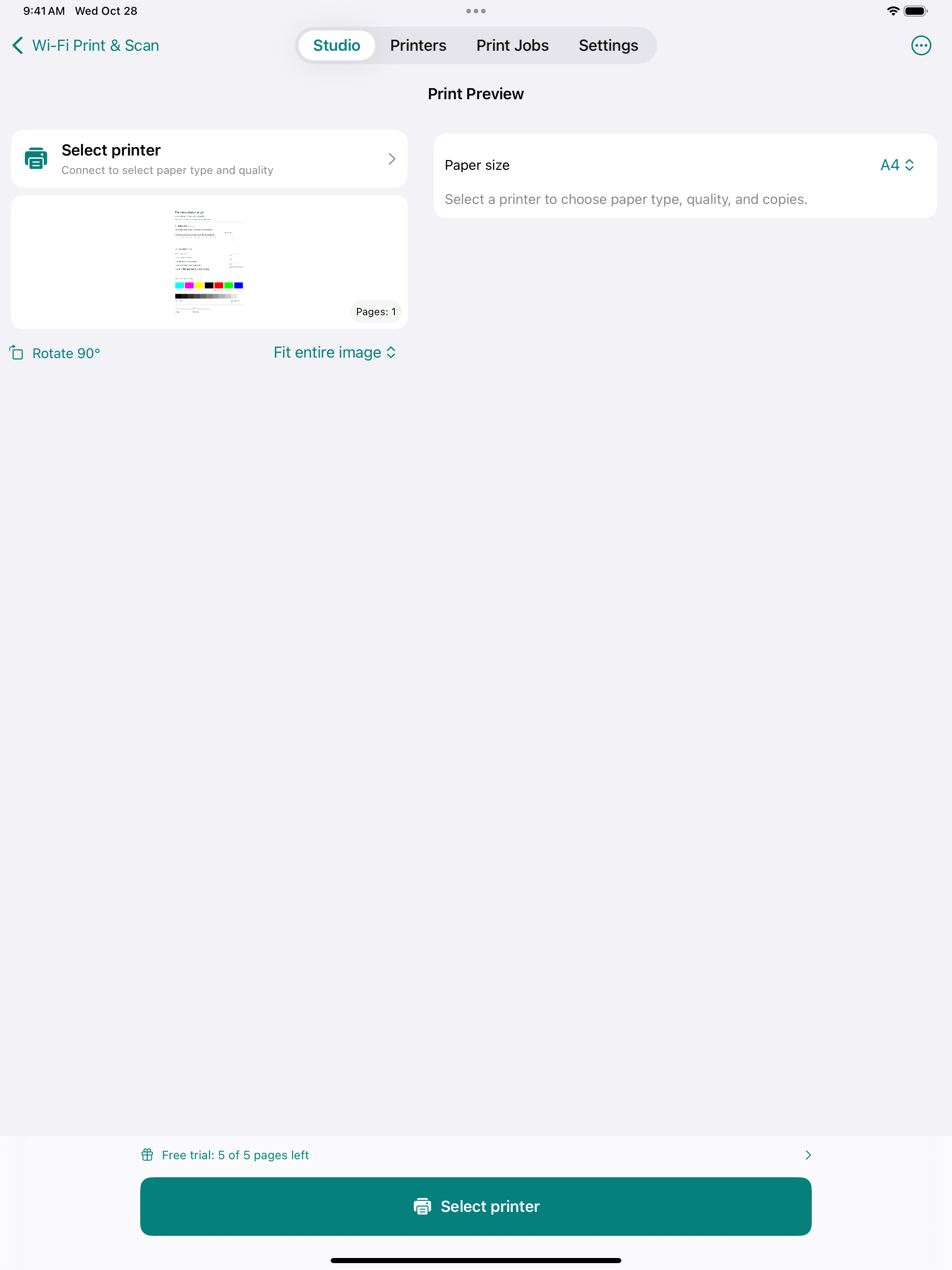
Choose paper, orientation, page range and copies. Fit the whole image on the page or fill and crop. View the iPhone preview.
Rotate, crop and reorder pages, then save a new PDF. Your imported original stays intact.
Recognize English and Traditional Chinese text on your device and save a searchable copy. Check important names and numbers against the original.
Name each printer, add its location and choose a startup default. If that printer is offline, the app will not send the job to another one.
Check device status, ink and supplies where the printer provides them. Missing information is shown as unavailable, not as an empty cartridge.
Printer compatibility
Printing and scanning need separate checks. Search the Epson model reference below to see what has been tested with Wi-Fi Print & Scan.
Printing: Connection and print-data transfer have been recorded on a real printer. Paper output and photo quality across media still need full verification.
Scanning: A 300 dpi grayscale image has been received. Other scan settings still need verification.
These records do not confirm every paper size, quality setting or scan mode.
Model search requires JavaScript. Device test records and connection guidance are available below and above.
Reference names come from Epson's iPrint and Smart Panel lists, captured on October 21, 2026. A listing confirms support for Epson's own app, not compatibility with Wi-Fi Print & Scan. An unlisted model may still work. Similar names and regional variants are kept separate.
Printers offering a compatible IPP or IPPS service can be tried. The app uses the formats and paper options reported by the device. Use your free pages to check the result.
The app includes direct printing for compatible ESC/P-R1 devices that report usable paper settings. This does not cover every Epson model, USB-only printers or devices that use a different print language.
Scanning uses eSCL or compatible Epson ESC/I services. A working print connection does not confirm scanning support. Flatbed, document feeder and duplex modes need separate checks.
Keep the app in the foreground and the screen unlocked while preparing and sending a direct print. Paper, resolution and quality options depend on the device.
Free trial and permanent unlock
Start with five direct-print pages per device, shared across your saved printers. Check the connection, paper output and photo quality with the paper you normally use.
A one-time purchase removes the page limit and enables iOS system printing. There is no subscription. The price shown in the app comes from the App Store.
The purchase removes the page limit. It does not add printer compatibility or change your printer's hardware capabilities. Please test before buying.
Support
Start with the printer list and its test status. Support depends on compatible printing protocols, including those offered by some older Epson Wi-Fi printers. Finding a device or reading its ink levels does not confirm that it can print. Use the free trial to check.
Make sure your iPhone or iPad and printer can reach each other on the local network, and allow Local Network access for the app. Check power and device errors, then search again. You can also enter a full IPP or IPPS URL. Guest Wi-Fi may prevent devices from communicating.
Usage is pages multiplied by copies. Each side of a duplex sheet counts as one page, and calibration pages count too. Jobs that fail before transmission do not use pages. If transmission may have occurred, usage is retained. A job larger than your remaining allowance is not partially printed, and clearing job history does not reset the allowance.
Use the same Apple Account you purchased with, then open Settings → Print Plan → Restore Purchases in the app.
Check the output tray and printer status first. The app does not automatically resend a job with an uncertain result, which helps prevent duplicate copies.
Photos, PDFs and text recognition are processed on your device. Print content goes to the printer you choose. No app account is required, and there are no advertising or analytics SDKs. When you share, export or choose a cloud folder for synchronization, the service you choose handles that data. Read the privacy policy.
The app runs on iPhone and iPad with iOS or iPadOS 17 or later. The interface is available in English and Traditional Chinese. Camera capture and network scanning depend on the capabilities of your device and scanner.
Email benson.chuang@tsugas.com with your app version, printer model, connection method and any error message.
Wi-Fi Print & Scan is independently developed. It is not an Epson product and is not endorsed by Epson.